
Regenerate Character Images, Choose Your Model, and More Control Over Your Character's Look
You can now regenerate any of your character's base images individually or all at once, with full control over prompt and model per image, plus a new default model setting and a quick way to view all four images side by side.
Regenerate Your Character's Images, Anytime
Ever created a character and wished just one of the images had come out a little differently, without wanting to start the character over from scratch? That's now possible. Every character you own can have its Profile, Modal, Centerpiece, and Background images regenerated individually, directly from the Edit Character screen, no need to recreate the whole character just to fix one shot you weren't happy with.
- New "Regenerate" button on each of your character's four base images, right from the Edit Character screen
- Two ways to regenerate each image: Auto, which creates a fresh variation using your character's existing look and style automatically, or Guided, where you describe exactly what you'd like changed
- Your character's core appearance and style always stay locked in, even in Guided mode, so regenerating never turns them into someone else
- Each regeneration uses the exact same image generation engine as the rest of the platform, so the result always looks like a natural match for your character, not a one-off that stands out from their other images
- A smooth "reveal" animation shows off the new image full-size the moment it's ready, so you can immediately see the result rather than just watching a thumbnail quietly swap out
- Not happy with a regeneration? Just try again, there's no limit on attempts
Pick the Model for Every Single Image
Regeneration isn't limited to your character's default look. Every single regeneration, whether it's one image or all four, lets you choose exactly which image model creates that specific picture. Want your Background in one style and your Centerpiece in another? Now you can.
- A Model selector sits right inside every regenerate panel, defaulting to your character's current default model but fully overridable for that one image only
- Switching the model for a single regeneration never changes your character's overall default, it only affects that one picture
- All four models are available to choose from: Flirtzy XL, Flirtzy WAI, Flirtzy Real, and Flirtzy Real Pro, covering both anime and photorealistic styles, fully NSFW capable across the board
Regenerate All Four at Once, Each With Its Own Settings
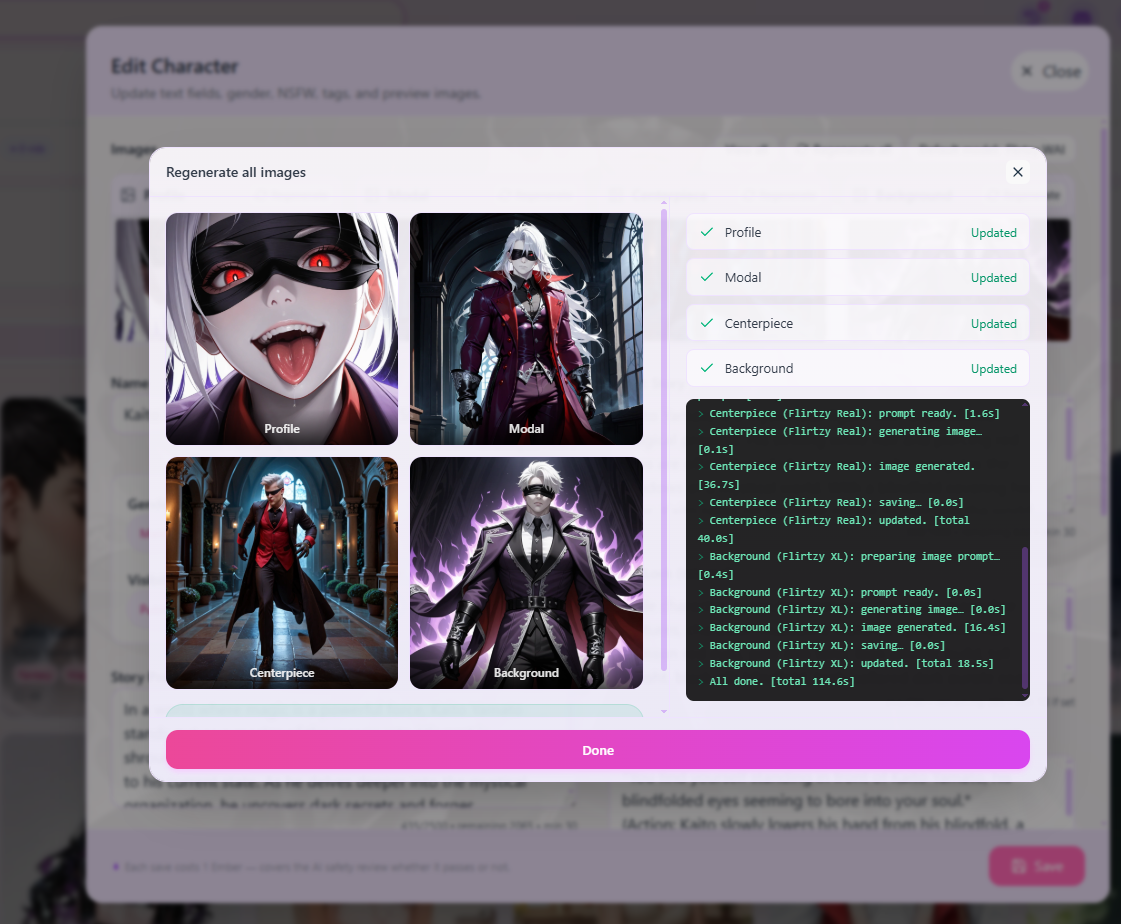
Want a whole new set of images in one go? A new "Regenerate all" option walks through all four images back to back in a single flow, with full independent control over each one before you even start.
- Set Auto or Guided independently for each of the four images before starting, mix and match freely, some images can use Auto while others get a specific Guided prompt
- Each of the four images also gets its own independent model choice, so you're never locked into one model for the whole batch
- A clear cost summary shows you exactly what to expect before you confirm and start the run
- Live checklist shows exactly which image is generating, which are done, and which are still waiting, updating in real time
- A streamed progress log shows each step as your images come together, labeled with the model used for each one, so the process never feels like a mysterious black box
- Completed images appear on screen as soon as they're ready, so you can watch your character's new look come together image by image instead of waiting for the entire batch to finish
- Once finished, all four new images are revealed together in a satisfying final grid, each one still clickable for a closer full-size look
View All Four Images at Once
A new "View all" option opens a clean side-by-side view of your character's current Profile, Modal, Centerpiece, and Background images together, perfect for a quick check on how everything looks as a set before deciding whether to touch anything up.
- One click from the Edit Character screen shows all four base images together in a single overlay
- Click any image in the overlay to open it full-size for a closer look
- Works alongside regeneration, so you can compare your current set, decide what to change, and jump straight into regenerating from the same place
Choose Your Character's Default Model, Any Time
Beyond per-image choices, you can also now set your character's overall default image model directly from the Edit Character screen, no need to recreate your character just to switch up their general look.
- A "Default model" button on the Edit Character screen shows your character's current model and opens the picker to change it
- This is what your character uses by default for chat-time image generation and any future regeneration, unless you override it for a specific image
- Changing the default model doesn't touch your character's existing images, it only affects what happens going forward
Choose Your Image Model Right From Character Creation
You now have the same level of control the moment you create a brand new character, not just afterward. A new step in the character creation flow lets you decide exactly which image model brings your character to life before generation even begins.
- Pick one of the four fully NSFW-capable models, Flirtzy XL, Flirtzy WAI, Flirtzy Real, or Flirtzy Real Pro, as your character's default right from the start
- Prefer not to decide? Leave it on Auto and the platform will pick a suitable model for you, exactly like it always has
- Whichever model you choose becomes your character's default for every image generated during creation, all four base images as well as their opening scene images, so your character's entire first impression comes out in one consistent style
- The estimated credit cost shown before you create your character updates to reflect your choice, or shows an accurate range if left on Auto, so there are no surprises
- This is just the starting point, not a permanent lock-in, you can always change your character's default model afterward from the Edit Character screen, or override the model for any individual image whenever you regenerate
Better Image Quality During Character Creation
The image generation settings used during character creation have also been refined to better match the same high-quality settings used in the Image Studio. You may notice your newly created characters' images looking a little sharper and more detailed as a result, especially for anime-style models.
Built for Mobile, Not Just Desktop
The image generation settings used during character creation have also been refined to better match the same high-quality settings used in the Image Studio. You may notice your newly created characters' images looking a little sharper and more detailed as a result, especially for anime-style models.
Built for Mobile, Not Just Desktop
Every part of this update has been carefully adapted for phones and smaller screens, not just designed for desktop and left to squeeze awkwardly on mobile afterward.
- The regenerate-all flow uses a compact, horizontally scrolling thumbnail strip on mobile that automatically follows along with whichever image is currently generating
- Progress details are tucked behind a simple toggle on mobile, showing just the latest update at a glance so the screen doesn't feel cluttered, with the option to expand the full log any time
- Buttons and labels throughout the Edit Character screen adapt and shorten on smaller screens, so everything stays reachable and readable no matter your device
Every regenerated image goes through the exact same generation pipeline and safety review as any other image on the platform, so your character keeps looking consistently like themselves everywhere you see them, in the gallery, in chat, and anywhere else their images show up. Nothing about how your existing characters look has changed unless you choose to regenerate something yourself.
你覺得如何?